OnMeetingEnded
The OnMeetingEnded webhook allows you to receive real-time notifications when new meetings are created in your Mesai integration. This webhook sends detailed meeting information to your specified endpoint using your preferred authentication method.
How to Access OnMeetingEnded Webhook Settings
Step 1: Access Profile Menu
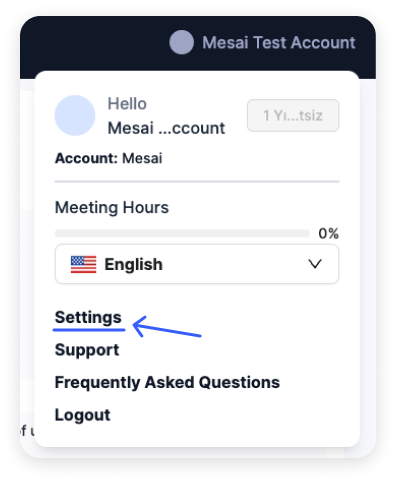 From your account menu, click on the "Settings" option.
Step 2: Navigate to Webhook Settings
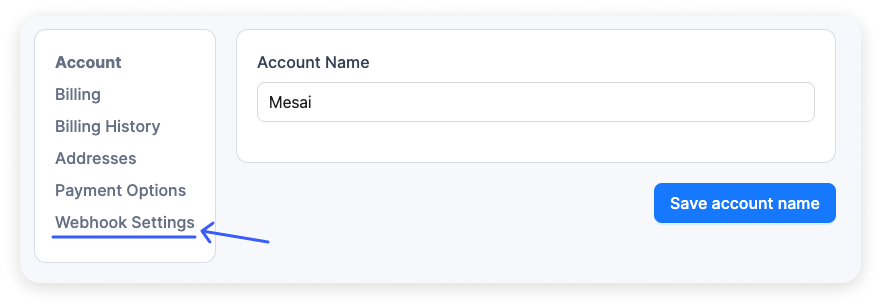 In the account settings page, select "Webhook Settings" from the left menu.
Step 3: Access Webhook Settings
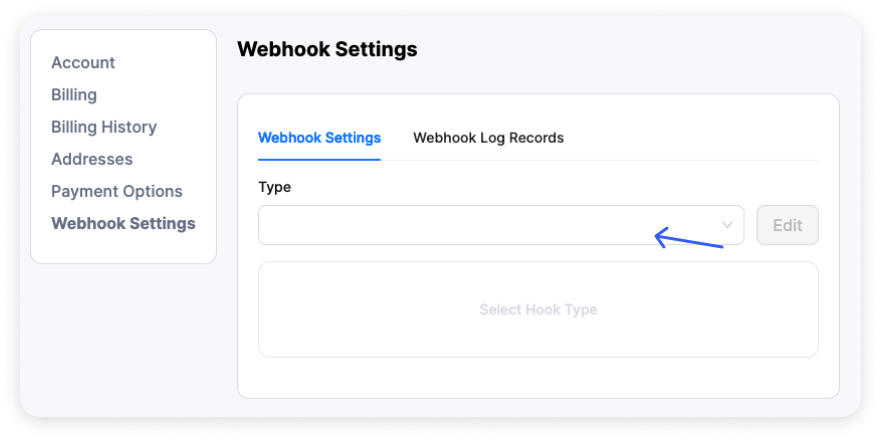 Click on "Webhook Settings" in the left navigation menu.
Step 4: Select OnMeetingEnded
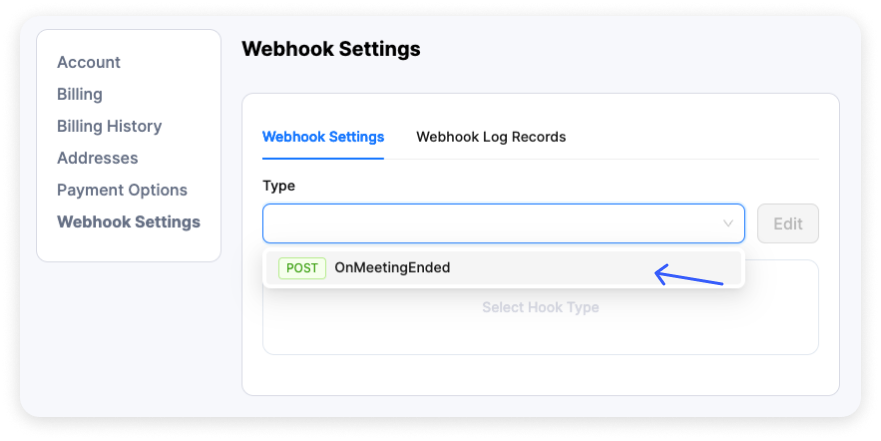 From the Type dropdown, select "OnMeetingEnded" option.
Step 5: Configure Settings -> Edit Button
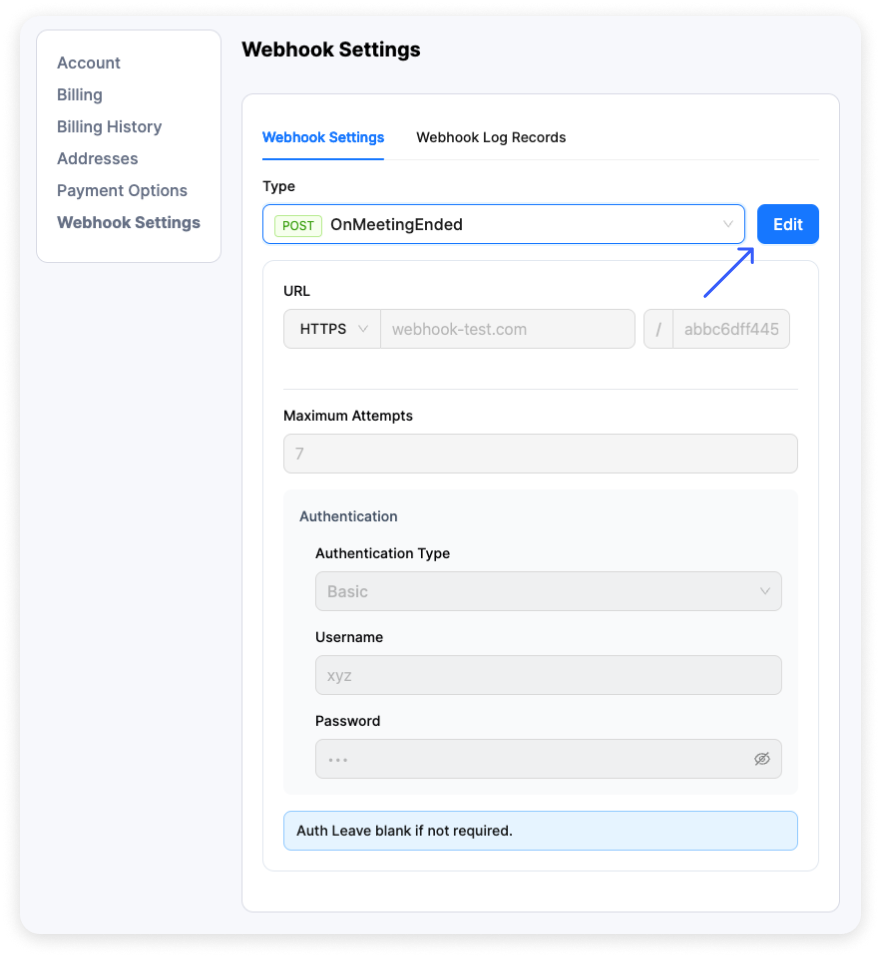
Step 6: Configure Settings
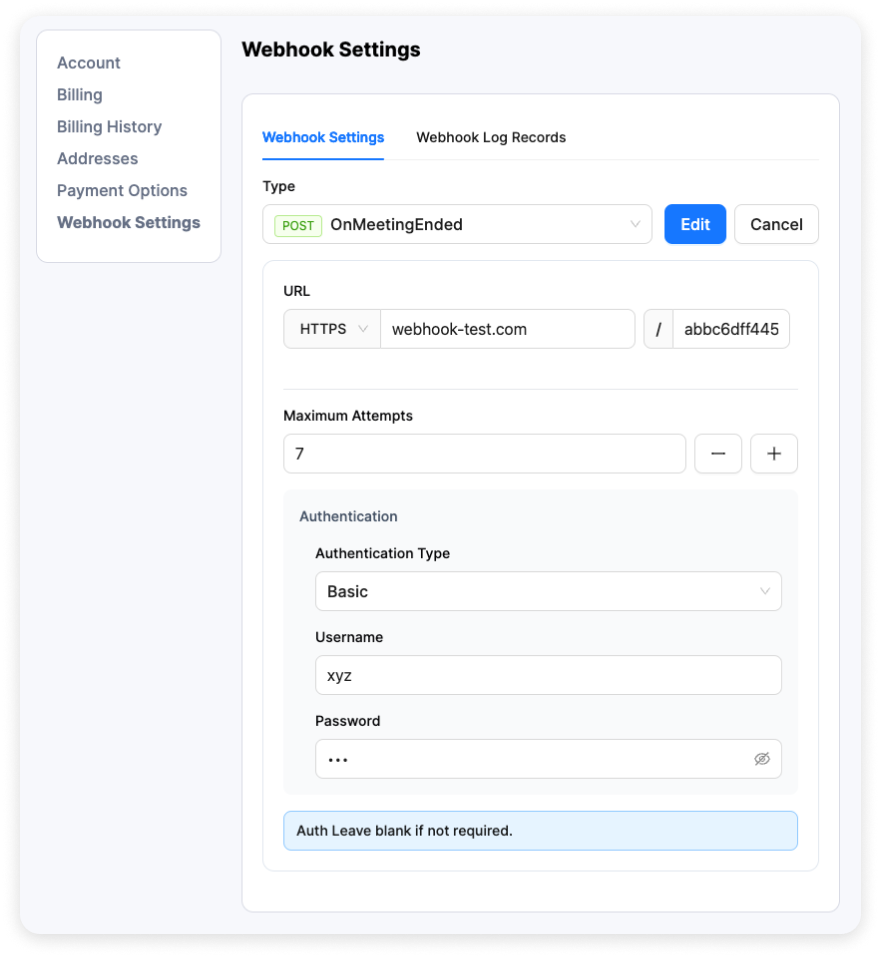 Configure your webhook settings including:
- URL details (HTTPS, domain, path)
- Maximum attempts
- Authentication method and credentials
How It Works
- When a new meeting is created in Mesai, the system triggers a webhook event
- The webhook makes a POST request to your configured endpoint
- If the initial request fails, it will retry based on your configured
maxAttemptCount - You can monitor webhook delivery status and history through the logs interface
Configuration
URL Configuration
| Field | Description | Required | Format |
|---|---|---|---|
Protocol | HTTP or HTTPS protocol selection | Yes | Select from dropdown |
Domain | Your webhook endpoint domain | Yes | Valid domain (e.g., api.example.com) |
Path | Endpoint path | No | URL path (e.g., /webhooks/meetings) |
Retry Configuration
| Field | Description | Default | Range |
|---|---|---|---|
Max Attempt Count | Maximum number of retry attempts if webhook delivery fails | 3 | 1-100 |
Authentication Methods
Token Authentication
Simple token-based authentication where the token is sent in the Authorization header.
| Field | Description | Required |
|---|---|---|
Token | Authentication token | Yes |
Basic Authentication
Standard HTTP basic authentication using username and password.
| Field | Description | Required |
|---|---|---|
Username | Basic auth username | Yes |
Password | Basic auth password | Yes |
Example Output
{
  "meetingId": "QPF6U3eO3YeCFZLXsIfd",
  "status": "DONE",
  "message": "OnMeetingEndedd successfully",
  "attemptCount": 1,
  "createdAt": "2024-12-19T14:30:00Z",
  "updatedAt": "2024-12-19T14:30:00Z",
  "meeting": {
    "id": "QPF6U3eO3YeCFZLXsIfd",
    "title": "Project Review Meeting",
    "status": "Scheduled",
    "startTime": "2024-12-19T15:00:00Z",
    "endTime": "2024-12-19T16:00:00Z",
    "type": "Google",
    "participants": [
      {
        "email": "user@example.com",
        "role": "organizer"
      }
    ]
  }
}
Webhook Logs
You can monitor your webhook deliveries through the logs interface, which provides the following information:
| Column | Description |
|---|---|
Meeting ID | Unique identifier of the meeting |
Status | Webhook delivery status (DONE/ERROR) |
Description | Detailed message about the webhook delivery |
Attempt Count | Number of delivery attempts made |
Created At | Timestamp of the webhook creation |
Updated At | Timestamp of the last delivery attempt |
Log Status Types
- DONE Success: Webhook delivered successfully
- ERROR Failed: Webhook delivery failed after maximum attempts
Best Practices
- Always use HTTPS for secure webhook delivery
- Implement proper error handling on your endpoint
- Process webhooks asynchronously to avoid timeout issues
- Validate the webhook payload before processing
- Set reasonable retry attempts (recommended: 3-5)
- Keep your authentication credentials secure
Error Handling
Your endpoint should return:
- HTTP 200-299 status code for successful processing
- Appropriate error status codes (4xx, 5xx) for failed processing
- Response within 10 seconds to avoid timeout
If a webhook fails to deliver, it will:
- Log the failure with error details
- Retry based on your maxAttemptCount configuration
- Mark as ERROR after all attempts are exhausted